Tuesday, 3 October 2017

Class Shared Writing Blog

Blogging is such a great tool to use to encourage your writers. This year I created a 100WC Blog (see previous post if you aren't sure about 100WC) where all of my students are authors and able to add their writing. I was worried they would be able to edit each others posts but thankfully they do not have access to each others writing.

A huge benefit of having all students writing on one blog is so they have easy access to each other's writing to give feedback. Parents can also easily see their students writing and it is also all in one place for the teacher to access.

To add multiple authors in blogger:

1. Click on settings in blogger.


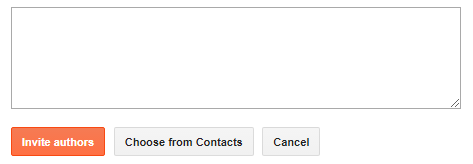
2. Under BASIC scroll down and you will get to PERMISSIONS. Here you will see yourself as the ADMIN and under that there is an +ADD AUTHORS button. Click on this and add your students.


3. Blogger has made it easy for you to do this and you can choose from your contacts. Once your students accept the invite they will be authors to the blog. Make sure you keep them as authors and do not make them admin. Doing this will enable them to make changes to the blog and change other students work.


The final thing you will need to do is teach the students how to add labels and ensure you enable labels on the blog. Every time students put up a piece of writing they need to put their name as a label. This makes it easy for me, other students and parents to find the piece of writing from specific students. I also get my students to give their writing a title using their name first.


This term each student will be getting a class list. They will start at their name and then work their way down making comments and ticking them off on that once they have commented for that student. They will need to do 5 comments a week - this means every student should get 5 comments a week. The following week they will do the next 5 students on their list and so on.

If you have not seen my post on how to create a comment template click here as this makes sure the students follow a structure when giving feedback. Without this my students would write comments like, cool!! nice writing!!! This has really helped with the quality of comments they give each other now.

Monday, 2 October 2017

100WC - Improve Students Writing

Finally it is holiday time and I can share some of the things that have worked well in class for me over the term.

If you have not seen the 100 Word Challenge website I suggest you check it out. This is run by the amazing Julia Skinner (@TheHeadOffice) and is a weekly writing challenge for students.


Students are given a motivation - this could be a picture, part of a sentence, or a few words - at the start of the week to help them write a 100 word piece of writing. That is it - 100 words! It is great to get my boys writing as you can do so much teaching with 100 words and it doesn't take them long. Students then upload the piece of writing to their blog - or class blog (this will be my next blog post) and then add the link to the 100WC website.

From this link other teachers and students can see it and your students will get feedback from people around the world. Each week their is a SHOWCASE and this highlights the best pieces of writing. Here is a piece of writing from a girl in my class that was 'showcased' and from that I got many tweets from educators around the world praising the student. I shared these with the student and it made her term!


There is also a twitter chat each week and you are now able to join 'Hubs', although I have not done this yet. Joining a hub puts you in contact with several other classes around the world and then you can comment on each other's writing.


Tuesday, 15 August 2017

Trying to Make Writing Easier

This term I am playing around with how I do writing in my class. I want to make it easier for me and for my students.

For Students

I used to share a writing motivation for the students - this could be a picture, article, video etc - and then they used to write down all their 'wonderings' in their book. Once they had written down these they had to list all the possible ways they could write from their wonderings. The problem with this was all this information stayed with that student.

What about the student that can't come up with something?
How can everyone else's wonderings and possible ways of writing help the whole class?
What if someone else's ideas motivate me more to write?

Taking these questions into considerations I decided to create a Google Form, which I have shared on my class site, that the kids can see the writing motivation on. They then complete their wonderings and possible writing - see pictures below.


On the same page of my site I have embedded the response sheet (Google Sheet) so when they complete the Form their responses are displayed straight away. Now all students can see straight away what each other has come up with for wonderings and ways to write.

For Students and Me

I have shared something along this line before but am sharing again. 

At the end of each writing session I get my students to complete a 'Teacher Help Form'. This helps me prepare for my next session. They need to tick one of the following boxes:
  • Happy with where I am at
  • Have started but have hit a speed bump - need you to swing by my table for a quick chat
  • A little bit lost - can I have a conference please?
  • Totally lost - HELP ME!!!
  • Finished draft, proof read and edited - conference please

For example, today after I have worked with one of my writing groups I know I have to swing by 6 students desks to have a quick chat. The students like this as they have asked for help without anyone seeing they are - which can be a issue for some students. Also - if I have any other time in class I can check in with the students that have asked for help.


How it looks on my site:

Click on links below to make a copy:


Thursday, 3 August 2017

Post Comment Template in Blogger

In my class we have a blog where we share writing with each other, and we are now starting to look into peer feedback (this is part of my teacher inquiry). My students were struggling with what to write or how to start their feedback so I have added a selection of sentence starters that pops up when they comment in blogger. See below:


This is pretty easy to do. Just see the image below and follow these simple instructions:

1. Go to blogger
2. Click on 'Settings'
3. Click on 'Posts, comments and sharing'
4. Add what you want to put in the .Comment Form Message'
Click 'Save'


Sentence Starters:

I really liked . . . because . . .
I really liked the way you . . .
I enjoyed reading this because . . .
It was especially good when you . . . because . . .

I think you need to . . . because . . .
Next time you write . . .
Think about adding . . .
Have you thought about . . .
To improve your . . . try . . .
Perhaps you could . . .

Friday, 28 July 2017

Homophone Worksheets made by Students

Today in class I taught my students how to make 'Self Marking Forms' after getting them to complete the one I shared earlier last week. It was pretty successful and they have done a pretty good job. These will be put on our class site where students will be able to access and complete when they have finished spelling and writing work. I plan to keep adding so there are lots of options for them. These ones are only homophone sheets but hopefully we will get creative and make a whole range over the term. Click on the links to make a copy if you want.

Friday, 21 July 2017

Teacher Help - Writing

I love teaching writing but I get frustrated when so many kids need help and there is only one of me to go round. This term I am going to trial a Teacher Help Form. At the end of writing sessions I will get the kids to complete the form - you can make a copy below. It will ask the following: 


Teacher Assistance 

I will then be able to make a plan of attack for the next day. I am thinking I will be able to catch up with kids who need help if I have any other 'free' time in class. This could be after a reading session, before school, or if I some how manage to find a few free minutes during the day.

Keeping track of this will also help me see what kids are always asking for feedback and help me keep track of who I have seen as in the Google Sheet I will be able to make notes.  Fingers crossed it will make giving feedback in writing easier.

Tuesday, 18 July 2017

EasyBib Bibliography Creator

Easybib Bibliography Creator is an add on for Google Docs and Slides and is an automatic bibliography citation generator. It is easy to use and will get students into the habit of citing work correctly, something they will need to do later in life.

If I had this tool when I was at university it would have saved me hours! Type in the name of the book, article or website you have been using, click search and then add to bibliography. It really is that easy.

Watch the short video for instructions.


Sunday, 16 July 2017

Using Forms to Create Self Marking Worksheets

An idea I have been playing around with is using Forms for worksheets, flipped learning or reinforcement activities. This is one I have created that I will trial with my students in the first week on homophones. You can make Forms into quizzes so as soon as the students have completed it they can get instant feedback and see what they got right and wrong. You can also embed YouTube Videos, pictures and links. My goal (if it works with the students) would be to create a whole folder of these on different things. I will also get my higher groups to create Forms for other students. This could range from punctuation, spelling rules - the list is endless. 

You can use Flubaroo to mark Forms so I will be trialing this over the next few weeks also to see what works best with my class. I will follow up on that in the next few weeks. 


** Create a copy here** There, their and they're Form

Friday, 14 July 2017

Force Copy

When I share some a Google Form, Doc, Slide or Sheet with colleagues or fellow teachers you will normally see this screen:


This means I am forcing people to make a copy so I don't have to share it with them. This is easy to do and means you don't have to share, risk them making unwanted changes or give access to lots of people. Below is a very short video showing you how to do this.
**You will need to change the sharing settings I think for anyone with the link before you do what I show you in the video**

Using Google Forms to Create a Reading Log

Google Forms are great to create digital Reading Logs for your students. What is even better is you can create a Reading Log for each week of the term, or the year, and have all of the data go into one Google Sheet. Each week will be on a separate tab at the bottom of the sheet. Not only does this enable me as a teacher to track the reading habits of my students, but it also gives me evidence of their reading for them and their parents if needed.

Each week I send out the Form for the week using Google Classroom. In previous years I have just had it on my class website for the kids to access.


Wednesday, 12 July 2017

Google Forms for Reflections/Goals

Google Forms are great and I am trying to use them in class to make things easier for myself and my students. Having seen a Form online that a teacher completes after every guided reading session (to keep evidence for themselves) I have made a couple of forms to use for weekly reflections. Copies can be made at the bottom of the post.

One is titled 'Weekly Reflection' and I see my students completing this every Friday afternoon. This will give them the chance to reflect on their week and set a goal for next week, and also give me some information about things they might have found too easy or challenging.


The other is titled 'My Learning this Week - Maths' and is specific to maths. This gives me feedback on how the students learning went during the week, if things were too easy or hard, and gives them a chance to ask for more help on something the following week.


Hopefully that gives you an idea of how you can use forms in your class. If you have any great ideas please leave a comment as I would appreciate more ideas.


Tuesday, 11 July 2017

Save as Doc - Turn a Google Sheet into a Google Doc

This video will show you how to turn a Google Sheet into a Google Doc. I use this to give my students their feedback on their speeches when I mark them in Google Forms.


**Note** If you do not have the add on click on Get add-ons and search for Save as Doc. Once you find this just install and it will always be there.

School Speeches

With school speeches coming up I thought I would share with you how I assess using Google Forms and then it my next post will show you how to share with students. It makes it so much easier for me as I don't have to write and have a massive paper trail. Follow these steps (which really are quite easy).

Click here to get a copy of the Google Form (Yes! I have already created it for you). Name it with your class name and then Speech Marking Form 2017. eg. 8GMc Speech Marking Form 2017

To fill out and then open a new form for the next student see short video below.


When I am marking speeches I have my response sheet open also. Here you can change marks if you need to, directly in the sheet. See how to create a Google Sheet from your Google Form below.


To see how to share with students click here.


Thursday, 29 June 2017

Writing Fun

Writing Fun is a great interactive website that any year group teacher can use. It has a wide variety of text types, different planners, examples for each text type (showing different levels of writing) and more! It is something I have used in my class for the last 8+ years. If you have not seen it before I recommend spending some time having a look around the site and thinking how you can use it during writing sessions.

One of my favourite writing activities in class (that all kids do) is the '6 Sentence Story'. Go to narratives and click on example 1, The Little Fish. We look at the features of a narrative and then I challenge the kids to write a 6 sentence narrative - using The Little Fish as en example. Even my boys can write 6 sentences! Once we have finished we highlight our nouns and then start adding adjectives. Then we add adverbs, metaphors and so in. Soon enough we create a pretty good piece of writing. 

Hopefully you get a chance to check it out and incorporate it into your class some how.


Tuesday, 27 June 2017

Auto Text Expander

Want to save time? Sick of typing the same thing over and over? Auto TextExpander is the app for you. Create short cuts so you don't have to write the same thing over and over again. Works great in GMail but does not work in Google Docs. A little birdy also told me it works great in Spider - where you write your reports. See video below for a demo and how to use.

Tuesday, 13 June 2017

Clipboard History

Have you every gone to paste something you have copied only to find you have copied over it? Have you ever wanted to use something that you copied yesterday, last week, last month and can't remember where you copied it from? Clipboard History is the answer for you. Add this extension to your Google Tool Bar to help you save time and not have to search for what you copied again. Watch the video below for a 2 minute tutorial on how to use and where to find.


*You can't see the icon in the video but the icon you are looking for on your tool bar is this -

Tuesday, 6 June 2017

Post Template

This video will show you how to create a 'Post Template'. Every time I create a new post in my TAI I always start with 'What? So what? Now what?' and I have to type this is every single time. Now that I have created a post template - yours might be different - it opens a new post for me with this already on. Follow the video tutorial, it will literally take you 2 minutes. Hope this helps.


Thursday, 1 June 2017

How to make a post

Below is a video that will explain how to make a post, add labels, change font etc. Just watch and follow the steps and you will be fine.


How to add a Google Presentation (Slides) to your Blog

The video below will explain to you how to add a Google Presentation (Slides) to your blog. 


How to add a Google Doc to your TAI

This video will explain how to add a Google Doc to your blog. In the video I mention a piece of code you will need. Please find this code below the video.


Code to add (as seen in video) - height="800" width="750"